Users
The Users section has two subsections:
- Users list — add and remove team members;
- IP whitelist — restrict panel access by IP address.
Users list
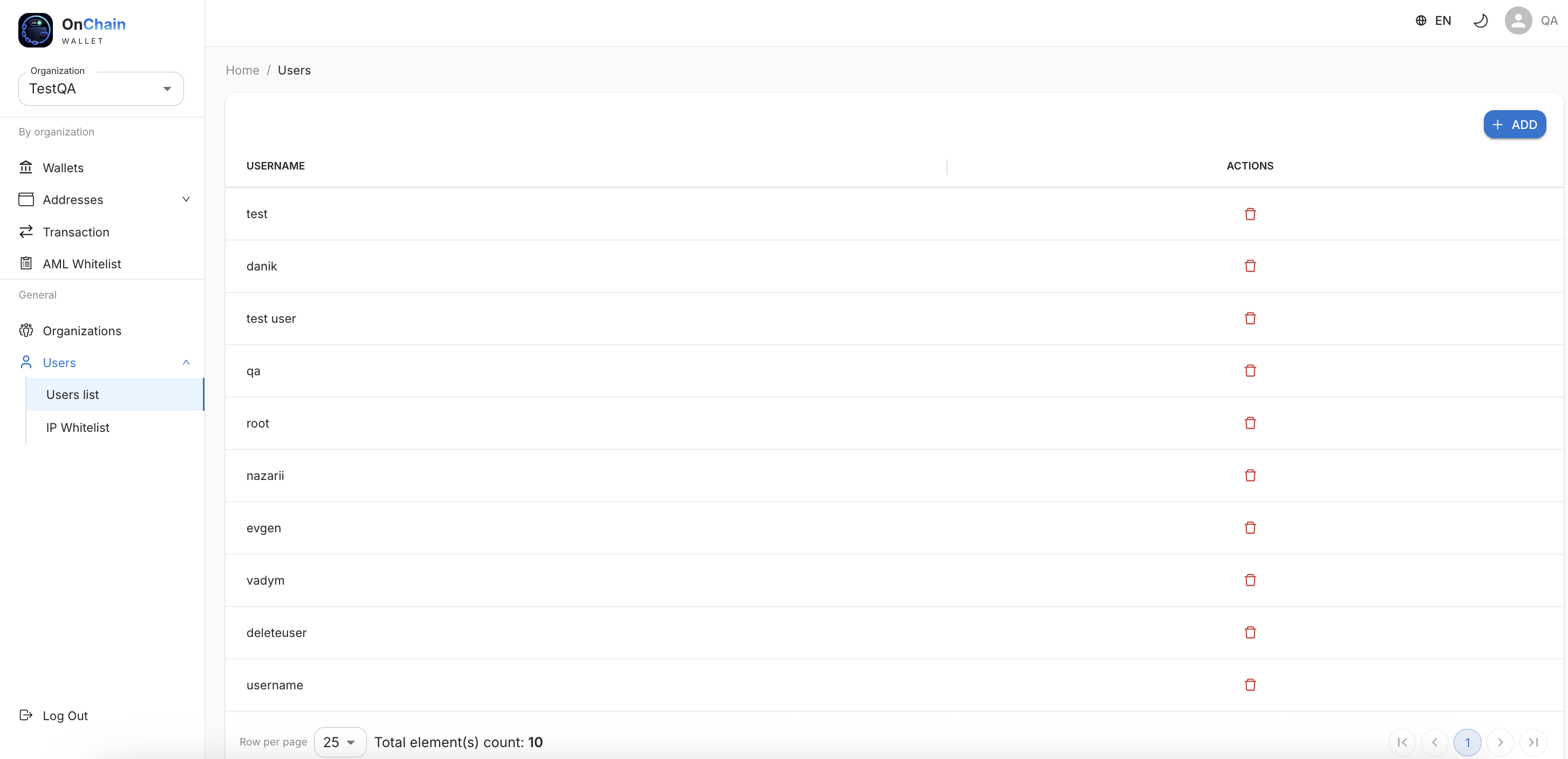
All users have equal access — everyone has the same access to all organizations and features.
Add a user
- Click + ADD.
- Enter a username (login).
- The system automatically creates the account and generates a password.
Warning
The generated password is shown once at creation — pass it to the team member immediately. After the first sign-in, they can change the password in their profile.
If 2FA (TOTP) is enabled in your profile, creating a new user will require a one-time code from your authenticator app.
Delete a user
Click the delete icon (trash) next to the user in the Actions column.
Info
You cannot delete your own account.
IP whitelist
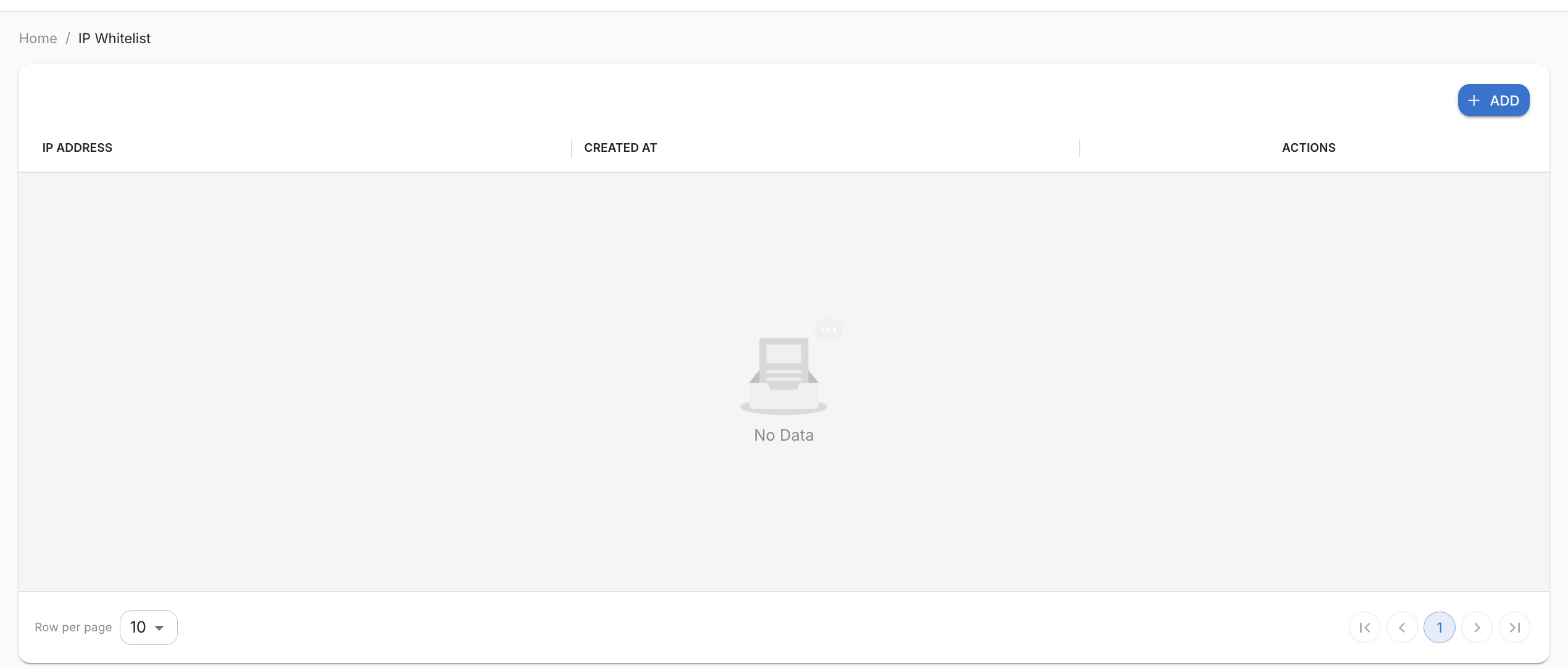
The IP whitelist restricts which IP addresses can sign in to the admin panel:
- if the list is empty — sign-in is allowed from any IP address;
- if one or more IPs are added — only users connecting from those addresses can sign in.
Add an IP address
- Go to Users → IP whitelist.
- Click + ADD.
- Enter the IP address (e.g. your office static IP or VPN).
The table shows the IP address, created at date, and a delete button.
Info
The IP whitelist for users and the IP whitelist for the organization API key are different lists. The first restricts web panel sign-in; the second restricts API requests (see Organizations → API keys).
Warning
Make sure you add all required IPs (office, VPN, backup channel) before restricting access. Otherwise you or your colleagues may lose access to the panel.